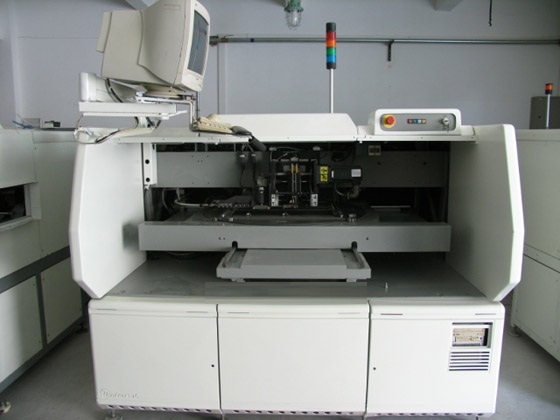
UNIVERSAL 6268C SMTpart
Specifications
- Origin
- china
- Price Term
- EX-Work
- Payment Term
- T/T
UNIVERSAL 6268C SMTpart is a Electronic Components, Accessories product. Key specs — Origin: china; Price Term: EX-Work; Payment Term: T/T.
Product Description
The Update Database dialog box is displayed. 4 Select the CAD file to import. Change the path if necessary to find the CAD file. Select OK. The Change Components dialog box is displayed. 5 Components from the CAD file not already in the component database are listed in the Unknown Components list box (newcomp2 in the previous example).
Add these new components to the database. a. Select a component from the Unknown Components list box. b. From the Categories list box, select the category in which to import the component. c. Select the Add button. Refer to step 5 of the CAD File - Import task for details about Copy or Alias.
To delete a component from the Unknown Components list, select the component and select Delete Selected. 6 Repeat step 5 for each component to import. 7 Select Done when all components have been imported. Display Use the Display option to display the CAD data file in the display area of the window. The data can be viewed, but not altered.
To display a CAD data file: 1 Select the CAD File menu bar heading. 2 Select the Display menu option. The Display CAD File dialog box is displayed. 3 Select the CAD file to display. 4 Select OK. The file is displayed in the display area of the CAD Data Import window. Use the scroll bars to view the entire file. Remember, the file cannot be altered here.
Refer to the topic titled Edit later in this module for information about editing the CAD data file. This Document Supports IM-UPS Version 1.2.x and Above The following illustration shows part of a sample CAD file in the display area. Manually Create a Format CAD data files and bill of materials files can be created using this procedure.
It is possible to create either Table or Separator formats. Procedures for both are provided in the following paragraphs. This Document Supports IM-UPS Version 1.2.x and Above Table Format 1 Select the CAD File menu bar heading. 2 Select the Display menu option. 3 Select the appropriate CAD data file from the Display CAD File dialog box.
The file is shown in the display area of the CAD Data Import window. 4 If necessary, change the format type to Table Format by using the Type option under the Format menu bar heading. 5 Define the fields: a. Place the cursor in Column 1 of the first line of data (excluding header lines). b. Push the [Enter] key.
The cursor is now in Creating New Field mode as indicated in the title bar of the display area. c. Push the right arrow key and the field will expand to the right by one column. Continue pushing it until all characters of the first data column are included in the field. d. Push the [Enter] key.
The first field is defined and the cursor is no longer in Creating New Field mode. e. Move the cursor to the beginning of the next field and continue using the [Enter] key and arrow keys to detect the fields for the remainder of the CAD data file. A bill of materials file only needs to have two fields: Reference ID and Component ID.
6 When all fields have been defined, they must be identified. Identify the first field in the Field Identification list box by selecting it and then double-clicking on the appropriate data type in the Field Types list box. 7 Repeat step 6 for all fields listed in the Field Identification list box.
If a CAD data file is being detected, it may be necessary at this time to designate a bill of materials file if a component ID field was not identified. Refer to the topic titled Bill of Materials for this procedure. 8 Separator Format 1 Select the CAD File menu bar heading. 2 Select the Display menu option.
3 Select the appropriate CAD data file from the Display CAD File dialog box. The file is shown in the display area of the CAD Data Import window. 4 If necessary, change the format type to Separator Format by using the Type option under the Format menu bar heading: a. From the Format Type dialog box, select Separator Format and then the OK push button.
The Number of Fields dialog box is displayed. b. Look at the CAD data file displayed and enter the number of fields. Each field is separated by a designated character. c. Select OK. The fields are listed in the Field Identification list box.
5 Identify the first field in the Field Identification list box by selecting it and then double-clicking on the appropriate data type in the Field Types list box. 6 Repeat step 5 for all fields listed in the Field Identification list box. It may be necessary at this time to designate the separator character and/or a bill of materials file.
Refer to the Table of Contents of this module for these procedures. 7 This Document Supports IM-UPS Version 1.2.x and Above Edit Use the Edit option to open a CAD data file in the Edit File window. It is here that the data within the file can be altered if necessary. Since this option opens the Edit File window, it is supported by a separate module.
Refer to the Edit File module. Options Use the Options menu bar heading for steps that may need to be performed for a successful import. The following options are available. . Delete Field . Set Import Range . Set TAB Columns Delete Field Use the Delete Field option to delete specified field(s) in the open format and renumber the fields that remain.
When a field is deleted, it is removed from the Field Identification list box as well. To delete a field from the current format: 1 Open, create, or detect a format. 2 Select the Options menu bar heading. 3 Select the Delete Field menu option. The Delete Field(s) dialog box is displayed. 4 Select one or more fields to delete. 5 Select OK.
A confirmation message is displayed. 6 Select Yes to perform the delete. Select No to cancel the delete operation. Set Import Range Use the Set Import Range option to import a portion of a CAD data file. The following options are available. . . The import range must be specified on a per file basis and is not part of the import format.
To set an import range: 1 Before importing a CAD data file, select the Options menu bar heading. 2 Select the Set Import Range menu option. The Import Range dialog box is displayed. 3 Select All or Range to indicate what part of the CAD data file to import. If Range is selected, the From and To data fields become active.
Enter the appropriate line numbers to indicate what part of the CAD data file to import. 4 Select OK. 5 Continue with the import process. Set TAB Columns It is possible that a CAD data file was created using the Tab key to delineate the data fields. A [Tab] key moves the cursor by predefined intervals.
As the Import facility does not know the interval used when the CAD file was generated, it is possible that data fields overlap making field detection difficult or even impossible. In this case, use the Set TAB Columns option to set the tab interval so that the columns are aligned upon import or auto detection. Tabs can only be set at one interval.
For example, a tab may be set at every three characters or every eight characters, but not at Column 3, Column 8 and then Column 10. To set tab columns: 1 Before importing a CAD data file, select the Options menu bar heading. 2 Select the Set TAB Columns menu option. The Tab Columns dialog box is displayed.
3 Enter the desired tab stop interval in the Tab Columns data field. 4 Select OK. 5 Continue with the import process. Exit Select Exit to close the CAD Data Import window. Changes To This Revision Updated to rev. A. Pg 22: Step 5, “By selecting a Category, ...” was “By double-clicking a Category, ...”.
CAD Data Import CAD Data Import CAD Data Import CAD Data Import CAD Data Import CAD Data Import 47146905 Rev-01-02 tln,td Table of Contents Introduction ..............................................................................................................................................CAD Import-1 The Window ...................................................................................................................................CAD Import-1 Minimum File Requirements....................................................................................................................CAD Import-4 Component Database Update..........................................................................................................CAD Import-5 Format.......................................................................................................................................................CAD Import-6 New .................................................................................................................................................CAD Import-7 Open ................................................................................................................................................CAD Import-7 Save .................................................................................................................................................CAD Import-8 Save As ...........................................................................................................................................CAD Import-8 Delete ..............................................................................................................................................
CAD Import-8 Import..............................................................................................................................................
CAD Import-9 Export............................................................................................................................................CAD Import-11 Auto Detect ...................................................................................................................................CAD Import-12 Units ..............................................................................................................................................CAD Import-14 Type ..............................................................................................................................................CAD Import-14 Separator Character.......................................................................................................................CAD Import-15 Conversions ..................................................................................................................................CAD Import-16 Bill of Materials ............................................................................................................................CAD Import-18 CAD File.................................................................................................................................................CAD Import-20 Import............................................................................................................................................CAD Import-20 Update Database Import ...............................................................................................................CAD Import-24 Display ..........................................................................................................................................CAD Import-26 Manually Create a Format...................................................................................................CAD Import-27 Edit ................................................................................................................................................CAD Import-30 Options ...................................................................................................................................................CAD Import-30 Delete Field ...................................................................................................................................CAD Import-30 Set Import Range ..........................................................................................................................CAD Import-31 Set TAB Columns .........................................................................................................................CAD Import-32 Exit .........................................................................................................................................................CAD Import-32 Changes To This Revision......................................................................................................................CAD Import-33 Introduction Use the CAD Data Import window to import data from an existing CAD file to an open product.
This is useful as the Product Editor can use the information already contained in the CAD file rather than requiring manual input of the data again.
The Window The CAD Data Import window is made up of four parts: the file summary; the file display; the Field Identification list box; and the Field Types list box. . #NAME? #NAME? #NAME? #NAME? -Format Type: The format of file. This can be either Table or Separator format (Table is the default).
Table format uses predefined columns for each data type. For example, the reference ID column may be defined as 10 characters. The actual reference ID in the CAD file can contain up to 10 characters. It does not matter if there is data in every column. Separator format uses a character (comma, space, dash, etc.) to separate data fields.
Each line of data must contain the same data types in order for auto detect to work. -# of Fields: The number of fields in the file. -# of Lines: The total number of lines in the file. . The display area is where the CAD file is displayed after an Auto Detect is performed.
The file can also be displayed by using the Edit or Display option under the CAD File menu bar heading. Once the file is displayed, it can be scrolled through using the arrow keys, the Page Up and Page Down keys, or combinations of keys such as [Ctrl, Home] and [Ctrl, End].
The display area is arranged in lines (horizontal) and columns (vertical) and the location of the cursor is always displayed in the top-left part of the display area. The display area can also be used to manually format a file. Refer to the topic titled Manually Create a Format. Data in the display area of the CAD Data Import window cannot be altered.
Data can only be altered using the Edit option under the CAD File menu bar heading. . The Field Identification list box is where the columns or fields, once detected, are identified as to the data they contain. . The Field Types list box contains all of the acceptable data types accepted by the Import utility.
These include: #NAME? #NAME? #NAME? #NAME? #NAME? #NAME?