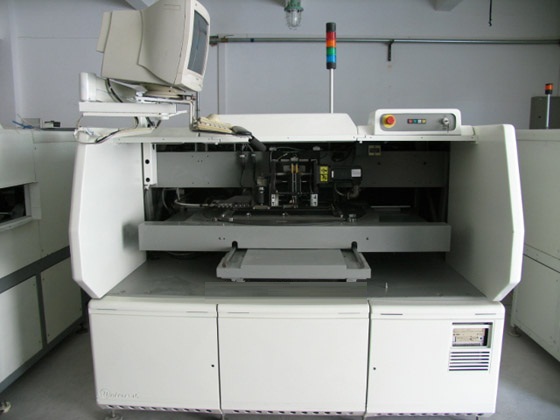
UNIVERSAL 4796L SMTpart
Specifications
- Origin
- china
- Price Term
- EX-Work
- Payment Term
- T/T
UNIVERSAL 4796L SMTpart is a Electronic Components, Accessories product. Key specs — Origin: china; Price Term: EX-Work; Payment Term: T/T.
Product Description
#NAME? #NAME? #NAME? -Dispense Head: The number of the dispense head from which the component is dispensed. This is a three-digit number (001, 117, etc.).
If the dispense head field is used, the dispense numbers are automatically entered into the dispense head list when the C #NAME? -Dispense Head Orientation: The rotation of the component in the dispense head. Choices are 0 and 180 degrees.
If this field does not exist or if no value is in the field, the value defaults to 0 degrees. #NAME? #NAME? #NAME? #NAME? #NAME? -Radial Component Shape: The shape of the body of radial components is defined as follows: 0 = circle 1 = rectangle 2 = clipped circle Minimum File Requirements To take full advantage of the Product Editor when importing CAD files, certain data needs to be present in the CAD file.
The following data satisfies the minimum requirements for a successful CAD file import. CAD File X Y Theta Component ID The arrow indicates how the component ID field of the CAD file cross-references the component database. The Component ID field may or may not be contained in the CAD file.
If the Component ID field is not contained in the CAD file, a bill of materials file must be imported with the CAD data file. Any of the following CAD and bill of material file configurations can be used. The CAD files shown contain the minimum fields required for a successful import.
Any or all of the remaining fields listed in the previous topic can be present in the CAD file.
CAD File X Y Theta Reference ID CAD File X Y Theta Dispense Head Number CAD File X Y Theta BOM-CAD Link CAD File X Y Theta Component ID Component Database Component ID Component Database Component ID Component Database Component ID Component Database Component ID The arrows indicate the fields that provide the link between the CAD file, the bill of material file, and the component database.
For details about bill of material files, refer to the Bill of Materials topic later in this module. Component Database Update In addition to the minimum requirements to create a product from a CAD file, if certain component data requirements are met, components from the CAD file can be added to the component database during the CAD import process.
Refer to the table for these requirements. Required Data for Import to Component Database Axial Component Radial Component Component ID Component ID X Coordinate X Coordinate Y Coordinate Y Coordinate Theta Theta Body Length Body Length Body Width Body Width Lead Diameter Component Height Lead Span Considerations: .
If a required field is not included in the CAD or BOM format definition, the component cannot be added to the component database. . When the CAD file is imported, the Product Editor checks for invalid component data. If any invalid or missing data is found, a message is displayed indicating the component ID and what associated data is invalid.
That component is not added to the database. . If a component ID in the CAD file is already defined in the component database, the data in the component database is not overwritten. Format Use the Format menu bar heading to access options that may be necessary to successfully format a CAD data file for import. These options include: . New . Open .
Save . Save As . Delete . Import . Export . Auto Detect . Units . Type . Separator Character . Conversions . Bill of Materials TECHNICAL PUBLICATIONS IM-UPS includes some predefined formats. These formats support the CAD files that are created by PPU (Pattern Programming Utility) when converting competitive pattern programs.
Formats for CAD files with axial or radial components using inch or metric units are supplied. These predefined formats support the following CAD data. . Component ID . Reference ID . X Coordinate . Y Coordinate . Theta . Axial Insertion Hole Span (axial only) New Use the New option to clear any existing data from the CAD Data Import window.
Open Once a format has been detected, it can be saved for use in future imports. Use the Open option to open the selected format which can then be applied to the successive import. To open an existing format: 1 Select the Format menu bar heading. 2 Select the Open menu option. The Open Format dialog box is displayed. 3 Select the format to open.
4 Select OK. The format information is displayed in the file summary portion of the window. Save Once a format has been established, it can be saved for use in future imports. If the format has previously been saved, this option overwrites the existing version with any changes that have since been made.
To save a format: 1 Make changes to the format displayed in the CAD Data Import window. 2 Select the Format menu bar heading.