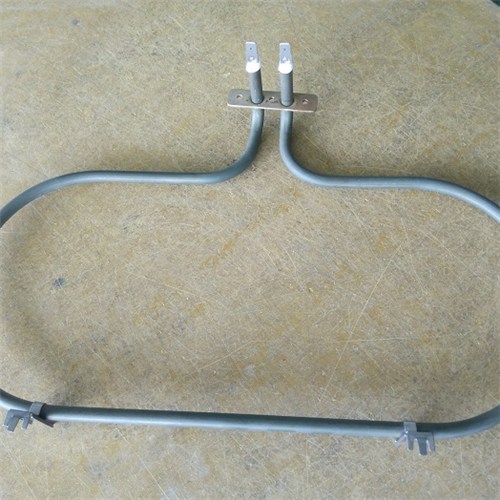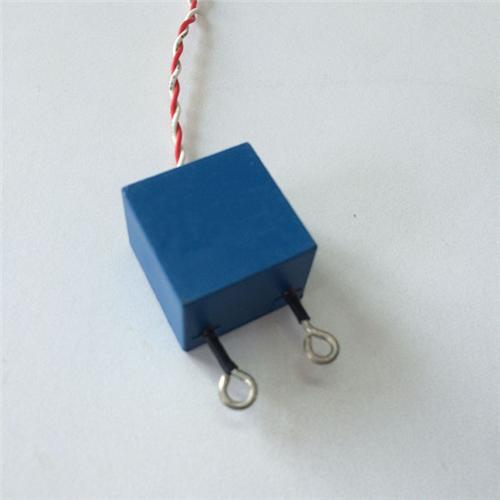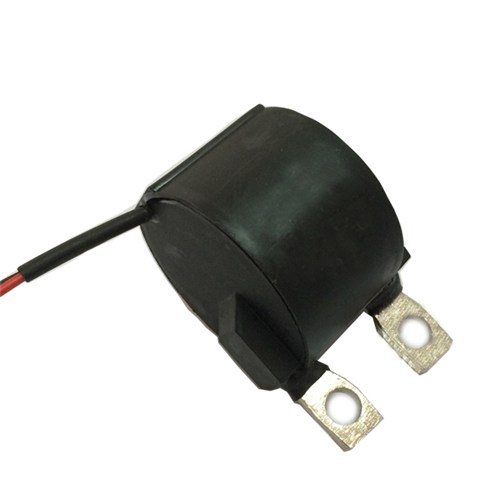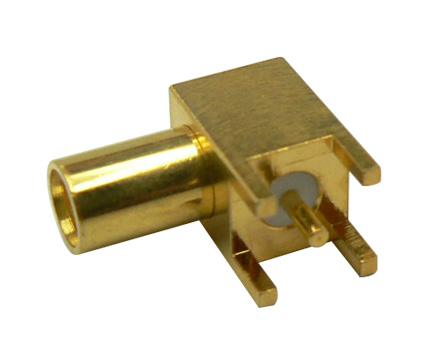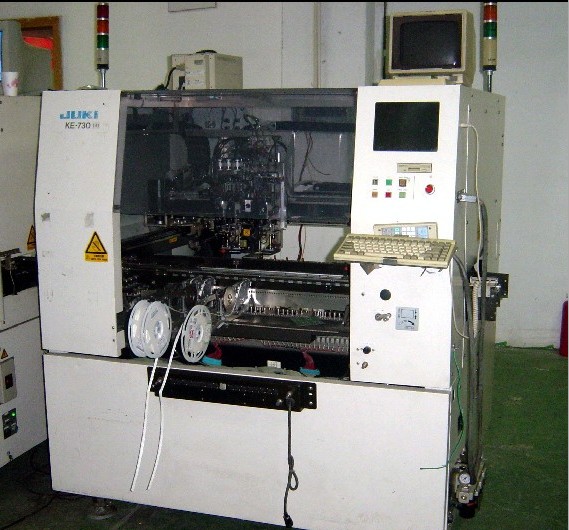
JUKI KE-2050M SMT part
Specifications
- Origin
- china
- Price Term
- EX-Work
- Payment Term
- T/T
JUKI KE-2050M SMT part is a Electronic Accessories & Supplies product. Key specs — Origin: china; Price Term: EX-Work; Payment Term: T/T.
Product Description
. The coordinates of the board side are copied to those of the mask side.
7. Click [Close].
. The screen returns to the main menu.
1D3C-EPt-EdMrd-004
1E3C-E-PMB01-A02-00 Page 1-25 1.5 Creating the Production Data
1.5.6 Print Conditions Data
1. About the print conditions data
1. Squeegee
A) Operation mode Choose a one-way print operation (Single) or a to-and-fro print operation (Double).
B) Priority after printing Set which should move first after printing; lift, squeegees or both together.
Lift : The squeegees are fixed and the mask is snapped off while the squeegees are
down. After that, the squeegees rise up.
Squeegee : After the squeegees have been raised, the mask is snapped off.
Together : Raising the squeegees and snap-off start simultaneously. When this mode is
Supports : set, the snap-off speed switching is fixed to the uniform velocity mode. A mask is clamped with a lift positioned at the print height, and only supports are
used in snap-off. At this time, a board needs to be vacuumed by the vacuum
pump.
C) Print speed D) Printing pressure E) Length F) Type G) Angle
. For C to G, input each data according to the conditions such as solder paste type, board size, or mask data.
H) Printing pressure teaching data selection Pressing this switch displays the screen.
Page 1-26 1E3C-E-PMB01-A02-00 1.5 Creating the Production Data
. Printing pressure teaching data list This screen lists the data (lengths and types) of the squeegees that have undergone the printing pressure teaching.
When squeegees are changed, the actual printing pressure becomes different from the set value
owing to the change in the weight of the materials. Therefore, be sure to perform the printing
pressure teaching before production.
Operations Manual)
However, once the printing pressure teaching is carried out, the data of the squeegees that have
undergone the printing pressure teaching are registered in as printing
pressure teaching data.
After that, from the screen, select the squeegee to be used.
The date on which the printing pressure teaching was carried out is displayed.
The squeegees that are different in materials can be registered even if they are the same in length and type. (E.g.: Urethane squeegee, metal squeegee, etc.)
To distinguish the squeegees that are different in materials, a comment is displayed below a date.
A comment can be entered when the printing pressure teaching is complete. (
Operations Manual)
. Pressing the desired squeegee No. c reflects its length and type on the print conditions data.
1E3C-E-PMB01-A02-00 Page 1-27 1.5 Creating the Production Data
. How to correct a comment
When [Comment correction mode] is pressed, its color changes to blue.
Pressing a squeegee No. displays the comment input screen.
A comment should be entered within eight characters.
Page 1-28 1E3C-J-PMB01-A02-00 1.5 Creating the Production Data
2. Printing range Input the print-operation range for squeegees. If nothing has been input, the to a portion of the board, inputting this value adjusts the range and can improve the tact time. When .30 is input
193C-043E
3. Lift
A) Clearance It is used to adjust the clearance between mask and board. When “0” is input, there will be no clearance. When performing the minus-contact printing that our company recommends, input the value “.0.5.”
B) Lowering speed It is used to adjust the snap-off speed required for stable snap-off.
C) Lowering stroke It is used to adjust the snap-off distance required for stable snap-off.
D) Snap-off speed switching Choose the lowering speed from among the following five modes. High-speed multiple snap-off is a sophisticated snap-off operation evolved from an accelerative snap-off so that the snap-off performance will be improved drawing on various kinds of solder characteristics. A favorable snap-off performance can be obtained and a cycle time can be reduced.
Uniform velocity : The support blocks lower the lowering-stroke distance at a uniform
velocity. Acceleration : The speed of support blocks accelerates slowly, and eventually it
reaches the lowering speed. Acceleration High : An accelerative snap-off is carried out at higher speed.
High-speed multiple : The speed of support blocks accelerates to the one that is faster than
(Recommended) the lowering speed, and eventually it reaches the lowering speed.
Multiple : The speed of support blocks accelerates slowly, and eventually it
reaches the lowering speed.
(If the snap-off performance is still bad even in the acceleration mode
choose the multiple mode. In this mode, however, the cycle time
becomes longer than the one in the acceleration mode.)
. If the snap-off performance is bad due to such as a narrow pitch, choose the acceleration mode. In this mode, however, a cycle time becomes longer compared with the other snap-off.
Explanation
Uniform-velocity mode (Input value)
Acceleration (Acceleration High) mode (Input value)
High-speed multiple mode (Input value) Lowering speed
Lowering stroke (Input value)
1E3C-E-PMB01-A02-00 Page 1-29 1.5 Creating the Production Data
4. Speed changing mode This is used when solder-filling amount needs to be controlled during printing, such as in the through hole printing or in the fine-pitch printing. Pressing [Speed change] highlights it in blue, and then [Set], which is located in the right of that, becomes available (indicated in black). Pressing [Set] switches to the screen.
. Setting of the print speed changing mode
Description 1 ‘Zone’ Specify whether to use each zone (Zone 1 to Zone 3). Press a zone switch to use. In using the zone, its switch is highlighted in blue. . Zone: Divided printing range
2 ‘Position’ Set the range of each zone. Regard the front end face of board as 0 mm. For each zone, you can choose from 0 mm up to board width; however, if zones are interfered with each other, a data check error occurs. If the zone positions are set as follows, a data check error occurs. cOne zone is including another. dOne zone is overlapping another. Zone 2 Zone 2 Zone 1 . Overlapped range Zone 1 If the printing-range offset in the print conditions data has been set, note that the setting range becomes narrow according to the setting of the printing-range offset value.
3 ‘Speed’ Set the print speed in the range of each zone. The setting range of speed is 5.0 mm/s to 400.0 mm/s. For the outside of zone, note that printing is carried out at the print speed set in the print conditions data.